
A saved search stores your filters, such as role type, location and route style. A job alert turns that saved search into a notification when a new listing matches. For drivers, that means FedEx-related openings reach you without a daily re-search. For Service Providers, it means your listing reaches drivers who asked to hear about roles like yours. On UCEP, the board built for FedEx-contracted Service Providers, both sides work from the same job categories: pickup and delivery, CDL-A solo linehaul and CDL-A team linehaul.
This guide covers how saved searches and alerts work, how to set them up so results are neither too broad nor too narrow, how often alerts should arrive, and what to do when they misbehave.
TL;DR
- A saved search is a stored set of filters. A job alert is the notification sent when a new listing matches it.
- Save a few narrow searches (one per role type and region) instead of one broad search. Narrow searches produce alerts you will read.
- Pick the delivery rhythm that fits how fast you act: instant or daily for roles that fill quickly, weekly for background watching.
- If alerts are missing or irrelevant, check the email address, spam folder, filters and frequency before anything else.
- Service Providers can write alert emails that get opened: specific subject lines, short bodies, one clear link, a working unsubscribe.
Table of Contents
- What saved searches and job alerts are
- For drivers: build saved searches that return the right number of jobs
- How often should alerts arrive?
- Set up, view, edit, pause and delete: the general routine
- Troubleshooting alerts that miss jobs or never arrive
- For Service Providers: how alerts affect your hiring
- Why a focused board suits alerts
- Perspective
- Post your roles where FedEx drivers search
- FAQ
- Sources
What saved searches and job alerts are
A saved search is a search you do once and keep. Instead of choosing the same role type, state and schedule every visit, you store those choices under a name. Reopening it runs the search again against current listings.
A job alert (also called a saved search notification) adds delivery. When a new listing matches the stored filters, the platform sends you a message, usually by email. The job comes to you instead of you going to the board.
The two are linked but separate. You can keep a saved search with no alert and run it when you choose. You can also have several alerts, each tied to its own saved search, and turn them on and off independently. Most platforms let you view, edit, pause and delete each one from an account or alerts page.

For FedEx-related driving work this matters because openings are spread across many separate Service Providers, each a business contracted with FedEx with its own terminal and its own hiring needs. Listings appear at different times and in different cities. A saved search watches that spread for you. Our guide on job alerts for drivers seeking FedEx roles goes deeper on why timing matters in this niche.
For drivers: build saved searches that return the right number of jobs
The most common alert failure is not a missing email. It is an alert that returns either hundreds of listings you ignore or none at all. The fix is in the filters.
Start with one search per role type
FedEx-related driving work falls into distinct jobs with different schedules and pay structures. Do not combine them in one search.
- Pickup and delivery: local routes, typically home most nights.
- CDL-A solo linehaul: one driver, longer runs between terminals.
- CDL-A team linehaul: two drivers sharing a truck on long-distance runs.
Create a separate saved search for each role you would actually accept. A driver open to solo or team work should have two searches, not one search with both selected, so the alert emails stay clear about what they contain.
Add location and one or two more filters
Location is the filter that controls volume the most. A state-wide search can be fine for linehaul, where routes cross regions. For pickup and delivery, keep the area tight, since nobody commutes across a state for a local route. After location, add at most one or two more filters that you truly will not compromise on.
A workable pattern:
| Search name | Role | Location | Extra filter |
|---|---|---|---|
| Local P&D | Pickup and delivery | Your metro area | Full-time |
| Solo linehaul | CDL-A solo linehaul | Your home state | None |
| Team linehaul | CDL-A team linehaul | Nationwide | None |
If an alert returns more than a screen or two of results on its first run, add a filter. If it returns nothing for weeks, remove the least important one. Adjust one filter at a time so you can see what changed. Our walkthrough of five priority filters for FedEx jobs shows which ones to set first.
Keep the titles and keywords simple
If a platform lets you add keyword terms, use the words an employer would put in a listing title. Stacking many keywords can hide good listings that word things differently. Greenhouse, for one, caps candidate alerts at up to 8 job titles by default, which is a useful reminder that a short, focused list of titles works better than trying to list every variant.
Review and prune on a schedule
Your situation changes. Once you have taken a job or moved, old alerts become noise. Every month or so, open your alert settings, pause the searches you no longer need and tighten the ones that are noisy. Keeping only the alerts you read is what keeps you reading them. If you decide to stop alerts altogether, our guide on how to unsubscribe from job alerts lists the steps.
How often should alerts arrive?
Platforms usually offer some combination of three rhythms.
| Frequency | What it means | Best for |
|---|---|---|
| Instant | A message as soon as a matching listing is posted | Roles that fill fast, or when you are actively applying |
| Daily | One summary per day | Active job search without constant interruptions |
| Weekly | One digest per week | Watching the market while employed |
There is no universal best setting. Delivery patterns also differ between platforms. For example, MyGreenhouse sends a daily or weekly email at 8:00 am in the candidate's time zone and groups alerts from all subscribed boards into one email. Another platform's weekly digest may send nothing in a week with no new matches, as Cavuno's alert documentation describes.
A practical rule for drivers: use instant or daily for the one or two searches that match the job you want now, and weekly for everything else. If you are currently employed and only watching, weekly is enough.
Whatever you choose, pair alerts with a ready application. A quick alert is only an advantage if you can apply the same day. Having your résumé current helps; see how to update your truck driver resume.
Set up, view, edit, pause and delete: the general routine
Every platform places the controls a little differently, but the routine is nearly the same.
- Create an account with an email address you check daily.
- Run the search with your role, location and other filters.
- Save it and give it a name that says what it is, such as "Solo linehaul, home state."
- Choose the alert frequency and delivery method.
- Confirm your email if the platform sends a verification message. Many boards send a confirmation email first and will not start alerts until you click it.
- Manage later from the alerts or saved searches page: edit filters, change frequency, pause or delete.
Every alert email should also include a link to manage or unsubscribe from that alert. If you cannot find that link, look in your account settings.
SMS alerts are another channel some drivers prefer, but text messages deserve extra care. See our guide to FedEx SMS alerts for truck drivers for the sign-up steps and how to avoid scams.
Troubleshooting alerts that miss jobs or never arrive
Work through these in order. Most problems are solved in the first three.
The alert never arrives
- Check the spam and promotions folders, and mark the sender as safe.
- Confirm the email address on the account is spelled correctly.
- Make sure you completed the verification email if one was sent.
- Check the alert is not paused.
The alert arrives but shows irrelevant jobs
- Add a location or role filter.
- Remove broad keywords that match unrelated listings.
- Split one mixed search into separate role-specific searches.
The alert misses jobs you find by browsing
- Filters may be too narrow. A listing with a slightly different title or a nearby city can fall outside your search. Remove your least important filter.
- Check your frequency. A weekly digest can show a role days after it appeared.
- Search by hand now and then. Our article on FedEx listings Google for Jobs misses explains why general aggregators can leave gaps in this niche, which is a reason to keep alerts on a board that focuses on FedEx work.
Too many emails
Lower the frequency from instant to daily, or daily to weekly, before deleting. Pause alerts you do not need rather than losing the search itself.
For Service Providers: how alerts affect your hiring
Alerts work on the hiring side too. When a driver has a saved search for your role type and area, your new listing can reach them without them finding it by chance. That makes the listing itself matter: a title and location that match what drivers actually save in their searches.
Write listings that match saved searches
- Use the plain role name: pickup and delivery, CDL-A solo linehaul or CDL-A team linehaul.
- State the terminal location or city clearly.
- Keep the title free of extra words that make it differ from how drivers search.
Post when drivers are reading
Timing affects who sees your listing first. Our piece on the best time to post trucking jobs covers posting windows and response times. For the wider picture on how alerts fit into hiring, see the role of job alerts in recruiting.
Alert email best practices
If you send your own alerts or recruiting emails to drivers, a few habits make them easier to use.
- Specific subject lines. Cavuno advises subject lines with a count, role and place, such as "12 new Product Design jobs in Austin," over generic ones. For your drivers, "3 new CDL-A team jobs near Memphis" does the same job.
- Keep them short. One recruitment email guide reports that 47% of recipients decide whether to open an email from the subject line alone, that subject lines under 8 words work best on mobile, and that over 60% of emails are opened on mobile. It suggests bodies of 75 to 150 words. Drivers often read on a phone between stops, so this fits.
- Avoid overused words. The same guide advises against the word "opportunity," all caps and misleading subject lines.
- List the essentials. Job title, company, location and a clear view or apply link, plus a link to manage preferences.
- Make unsubscribing easy. Every message should carry a working unsubscribe link. The same Mailsoftly guide ties this to CAN-SPAM compliance.
- Prune inactive recipients. Cavuno notes that one board removes subscribers who have not opened an alert in four weeks, since a smaller active list performs better than a bloated one.
Also consider who you are writing to. A driver who needs a Clearinghouse-ready candidate pool has different needs from one browsing. Our article on driver availability alerts covers that side for Service Providers. Measuring what works matters too; see five trucking recruiting metrics.
Why a focused board suits alerts
Alerts are only as good as the listings behind them. On a general board, a search for "CDL-A" returns every carrier in the country, and filters have to do the work of sorting FedEx-related roles from the rest. On a board built only for FedEx-contracted Service Providers, every listing is already in the right field, so your saved search can be simpler and the alerts cleaner.
Perspective
We built UCEP around one idea: drivers who want FedEx-related work and the Service Providers who hire them should not have to search through unrelated listings to find each other.
Alerts are where that focus pays off. A driver's saved search for CDL-A team linehaul is useful when every result is a FedEx-related team role. A Service Provider's listing is useful when it lands in front of drivers who already have FedEx experience. UCEP offers targeted reach to 140,000+ FedEx-experienced drivers, and the job categories (pickup and delivery, CDL-A solo, CDL-A team) are the same ones drivers filter on.
Our advice is practical. Drivers: save a few narrow searches and keep only the alerts you read. Service Providers: name the role plainly, state the location, and post where FedEx-experienced drivers are already looking.
Aaron
Post your roles where FedEx drivers search
If you are a Service Provider, UCEP lets you list pickup and delivery, CDL-A solo linehaul and CDL-A team linehaul roles on a board dedicated to FedEx-related driving. Features include a built-in applicant tracking system, targeted driver alerts and company profile management. The Standard Monthly Plan is $99 per month, and new recruiters can start with a Complimentary Trial Listing. See plans and pricing for details.
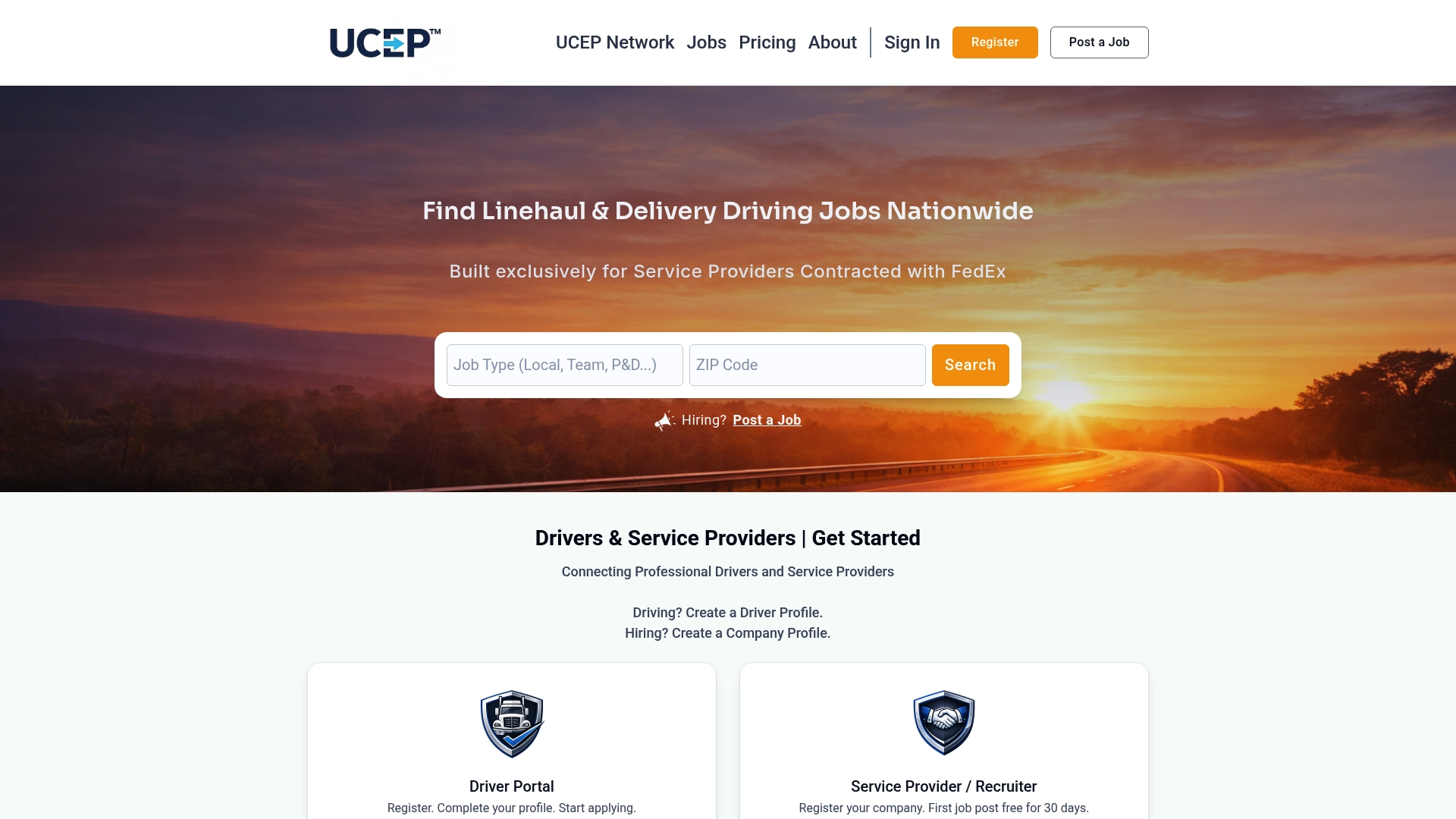
If you are a driver, browse FedEx driver job listings by role type. Searching is free for drivers.
FAQ
What is the difference between a saved search and a job alert?
A saved search stores your filters so you can rerun the same search later. A job alert sends you a notification when a new listing matches those filters. You can keep a saved search without an alert, but an alert needs a saved search behind it.
How many job alerts should I set up?
Start with one per role type you would accept, such as pickup and delivery, solo linehaul and team linehaul. Three to five focused alerts are easier to act on than one broad one. Platforms may also cap the number; for example, MyGreenhouse allows up to 8 job titles by default.
Should I choose daily or weekly alerts?
Choose instant or daily for the roles you want to apply to soon, since early applicants are seen first. Choose weekly for searches you are only watching. You can change the frequency at any time from your alert settings.
Why am I not getting my job alert emails?
Check the spam folder, confirm the email address and any verification email, and make sure the alert is not paused. If those are fine, your filters may be too narrow to match any new listing, so remove the least important one.
Sources
- MyGreenhouse job alerts, Greenhouse Support
- Email Notifications, Cavuno
- Email Marketing for Job Boards, Cavuno
- Recruitment Email Marketing: The Complete Guide for 2026, Mailsoftly