
To unsubscribe from a job alert, open one of the emails, scroll to the bottom and click the unsubscribe link. If the emails keep coming, or you want to remove one alert and keep others, sign in to the job site and delete the saved search that creates the alert. This guide covers both routes, what to do when a sender ignores your request, and how to tell a real alert from a scam.
TL;DR
- The fastest fix is the unsubscribe link in the footer of any alert email. It usually ends all alerts from that sender or cancels that one alert.
- Some sites create one alert per saved search, so you may need to delete each alert in your account settings.
- Under the CAN-SPAM Act, a sender has 10 business days to honor your opt-out. After that, mark the emails as spam.
- If you are not sure an alert is real, do not click it. Open the job site yourself and check your alerts there.
- If you are a CDL driver, you can keep alerts for FedEx roles and remove the rest, so your inbox only shows jobs you want.
Table of Contents
- The fastest way: use the unsubscribe link in the email
- Stop alerts from inside your account
- Stop alerts on the big general job sites
- What to do if job alert emails keep coming
- Real alert or scam? Check before you click
- Should you stop all job alerts?
- Our perspective
- For Service Providers: what your own alerts should do
- Find FedEx driving jobs without the inbox clutter
- FAQ
- Sources
The fastest way: use the unsubscribe link in the email
Every legitimate job alert email includes an unsubscribe option. Use it first, because it takes less than a minute and needs no password.
- Open the most recent job alert email from the sender you want to stop.
- Scroll to the very bottom of the message, below the job listings.
- Click the link labeled "Unsubscribe" or "Manage alerts."
- Confirm on the page that opens. Some senders ask you to pick a reason or choose which alerts to stop.
- Wait for a confirmation message on the screen. Keep it open until you see it.
Two things trip people up. First, some job sites send one alert for each saved search. Clicking unsubscribe in one email may cancel only that alert, and you must repeat the step or delete the others in your account. Second, the link sometimes opens a preference page instead of ending everything. Look for an option such as "Unsubscribe from all" before you close the page.
If you cannot find the link, check the very bottom of the email, below the sender's address and legal text. Links in small gray type are easy to miss on a phone. Scrolling to the end of the message in a desktop browser often makes them easier to see.

Stop alerts from inside your account
When the email link does not work, or you want more control, sign in to the job site. Most boards follow the same pattern: a saved search or a followed company creates an alert, and deleting that item stops the email.
Look in these places:
- Alerts or Saved Searches. This is the most common spot. Each saved search lists its alert frequency (daily, weekly, instant) and a delete or off switch.
- Preferences or Email Settings. Here you find general notifications, such as tips, recommendations and newsletters, that are separate from search alerts.
- Profile or Account Settings. Some sites hide email preferences under your profile picture or name.
- Mobile app settings. Push notifications and email alerts are often controlled in separate places. Turning off one does not turn off the other.
A good example of the pattern comes from a large employer's careers site. Its official help page for Careers email alerts says to open the recent searches menu, choose to view all, set the email frequency to "Never," and click Done. According to that page, changes take effect immediately. Other boards use different labels, but the logic is the same: find the search, then change its frequency or delete it.
Delete, pause or reduce
You do not have to cancel everything. Most job sites let you do one of three things:
| Option | What it does | When to use it |
|---|---|---|
| Delete the alert | Removes the saved search and its emails | You no longer want that type of job |
| Switch to a weekly digest | Sends one summary instead of daily or instant emails | You still want to see jobs, but less often |
| Move alerts to the app only | Stops email, keeps notifications on your phone | Your inbox is full but you still check the app |
If you are still job hunting, reducing frequency is often better than deleting. If you have found a role, delete everything and sign out.
Stop alerts on the big general job sites
General job boards and professional networks follow similar steps, though the menu names change. Here is a generic walkthrough that fits most of them.
On a computer
- Sign in and open the Jobs section.
- Open Preferences, Alerts or Saved Searches.
- Review the list. Each entry is a search that sends you email.
- Toggle each alert off, or choose Delete. Some sites require you to remove alerts one at a time.
- Open Email Settings and uncheck general notifications such as recommended jobs and newsletters.
- Look for an "Unsubscribe from all" option at the bottom of the page and use it if you want a clean break.
On a phone
- Open the app and go to Jobs.
- Tap the menu or More icon and choose Job alerts.
- Tap the edit or pencil icon next to an alert.
- Choose Delete, or switch it to in-app notifications only.
- Return to your account settings and check the notification section for pushes and emails.
Many networking sites limit you to a set number of saved alerts, and some also send "top picks" emails based on your profile, separate from any search you saved. If alerts still arrive after you delete your searches, check for these recommendation emails in the preferences page.
What to do if job alert emails keep coming
Sometimes you unsubscribe and the emails continue. Work through this order.
- Check that the change saved. Reload the preferences page and confirm the alert is off. If it is not, try a different browser or clear your cache and repeat.
- Look for other alerts. You may have several saved searches, an older account under a second email address, or an alert created by a recruiter on your behalf.
- Check who the sender is. Open the email header or sender address. If it is from a different company than you expected, you are dealing with a separate list.
- Wait the legal period. The FTC's CAN-SPAM compliance guide says a sender must honor an opt-out request within 10 business days. It also says the sender cannot charge a fee or require more than a reply email or a visit to a single web page.
- Mark the emails as spam. After 10 business days, continued emails violate the Act. Wirecutter's guide to unsubscribing recommends using your email client's Spam button when the messages keep coming. It also quotes an FTC official who noted that spam filters have improved, which makes this step more effective.
- Contact the sender's support team. Write down the date you unsubscribed and send it with a screenshot of the confirmation.
The same FTC guide says that once a person has opted out, the sender cannot sell or transfer that email address, except to a company hired to help comply with the law. If you get a flood of messages from unrelated senders right after you opt out, that is worth reporting.
A note on timing: the 10 business days are counted from your request, not from the date of the last email. Business days exclude weekends and federal holidays, so a request sent on a Friday may take more than two calendar weeks to take full effect. Use that period to clean up the rest of your settings.
A short checklist for a clean break
- Unsubscribe using the link in one email.
- Delete each saved search in your account.
- Turn off recommended jobs and marketing emails.
- Switch off app push notifications if you do not want those either.
- Check your spam and promotions folders for stray messages.
- Sign out of the app, or delete the account if you will not use it again.
Real alert or scam? Check before you click
Unsubscribe links are also used by scammers. A fake alert may copy the look of a known job site, and the unsubscribe link in it can take you to a page that asks for a password or personal details. If an alert looks off, do not click anything inside it.
Safer habits:
- Open the job site yourself. Type the address into your browser or open the app, then check your alerts page. If the alert is real, it will be listed there.
- Check the sender domain. A real alert comes from the domain of the site you signed up with. A different domain, or a misspelled one, is a warning sign.
- Verify the job. The FTC advises job seekers to verify an opening on the company's own official website and to search the company name with words such as "scam," "review" or "complaint."
- Never deposit a check from someone you do not know. The same FTC alert gives this as a firm rule.
- Never pay to apply. A real employer does not charge application fees.
If you do find a fake listing, report it. A KQED report on rising fake job listings notes that experts recommend reporting scams to the job board, local law enforcement and the FTC, even though few scammers are prosecuted.
For drivers, text messages are a growing channel for both real and fake offers. Our guide on FedEx SMS alerts for truck drivers explains how to sign up and how to avoid scams. Before you accept any offer that arrives by text or email, read the right questions to ask before accepting a job.
Should you stop all job alerts?
Not always. Alerts are useful when they are targeted. They become noise when they are broad, repeated across several sites, or based on a search you made a year ago.
Ask three questions:
- Am I still looking? If not, delete everything.
- Are the alerts specific? An alert for "driver" across the country will bury you. An alert for one license class, one job type and one region will not.
- Am I seeing the same jobs more than once? Several sites often repost the same opening. Keep the one that shows the most useful detail and delete the others.
If you are a commercial driver, the best alerts are narrow. Our overview of job alerts for drivers seeking FedEx roles explains how to match an alert to your license class and route type. If you search by hand, the five priority filters for FedEx jobs help you narrow results quickly. Some listings also never reach general search tools, as we describe in how to catch FedEx listings Google for Jobs misses.
Our perspective
Most job alert problems come from volume, not from alerts themselves. A driver who signs up on five general sites for "driver jobs" will get a flood of mixed listings: local routes, long-haul openings, jobs that need a license class they do not hold, and postings that appear on every site at once. Unsubscribing is the right response to that flood.
We built UCEP for a narrower purpose. Every listing comes from a Service Provider contracted with FedEx, and the categories are specific: pickup and delivery, CDL-A solo linehaul and CDL-A team linehaul. That focus is designed to keep alerts relevant, so you receive fewer messages and each one matches the work you want.
If you decide you want fewer emails, we suggest this approach: remove the broad alerts, keep one or two precise ones, and review them every few weeks. When you no longer need alerts, you can stop them at any time. An alert should serve your search, and you should be able to end it as easily as you started it.
Aaron
For Service Providers: what your own alerts should do
If you recruit drivers, the same complaints reach you from the other side. Drivers unsubscribe when alerts arrive too often, repeat the same job or do not match their license. Our guide on the role of job alerts in recruiting explains how to keep alerts useful. Timing matters as well: see our notes on when to post trucking jobs and on driver availability alerts.
Three habits reduce unsubscribes:
- Post a job once, in the right category, with the license class and route type clearly stated.
- Keep postings current. Remove filled roles promptly so alerts do not send drivers to closed jobs.
- Make unsubscribing easy. A visible opt-out protects your reputation and keeps you within the law.
Find FedEx driving jobs without the inbox clutter
If you are cleaning out your alerts because they no longer fit, a focused board can replace several of them. UCEP lists FedEx-related driving roles in one place, with pickup and delivery, CDL-A solo linehaul and CDL-A team linehaul categories, plus employer and terminal directories so you can research a company before you apply.
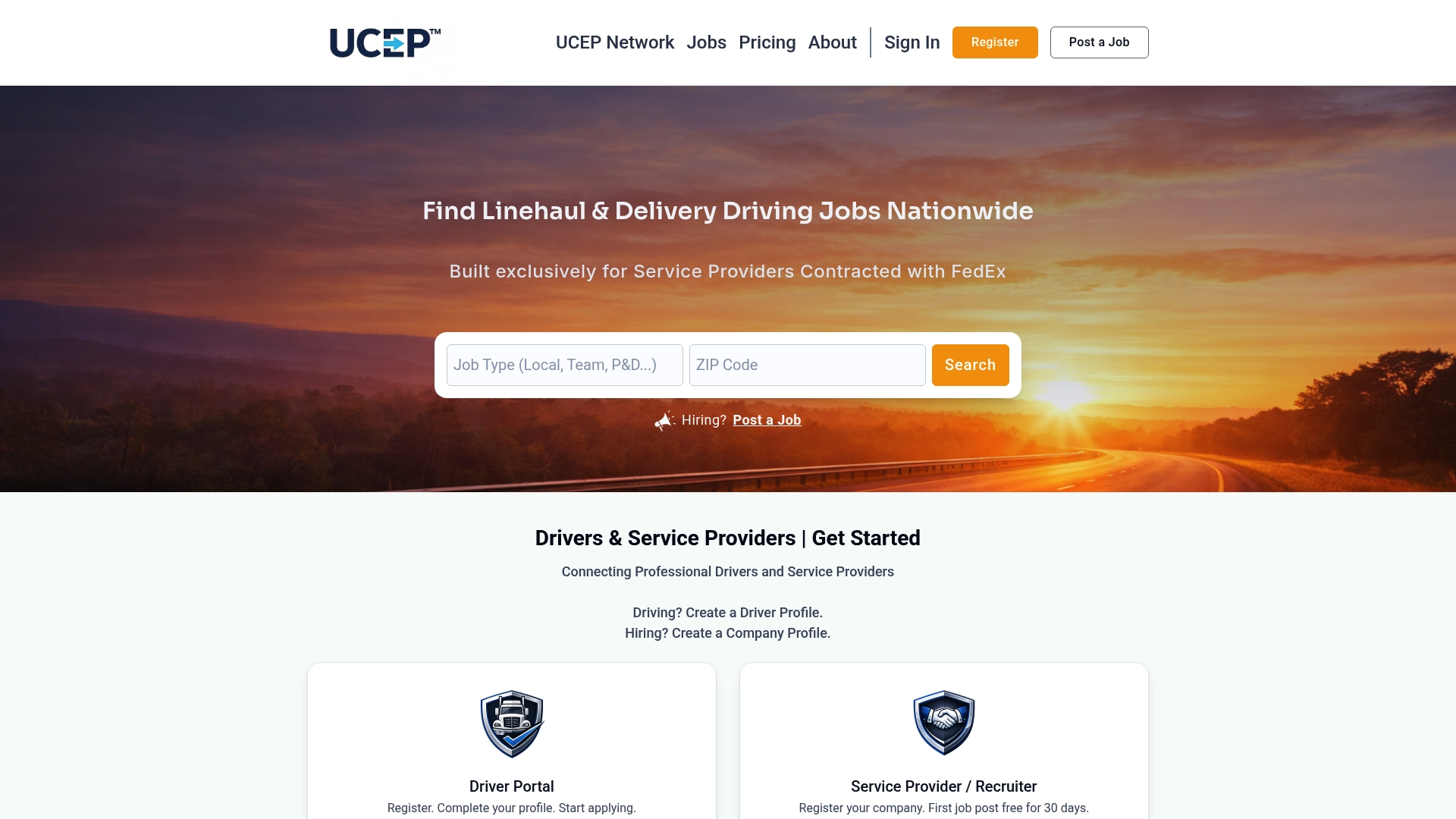
Drivers can browse FedEx driver jobs on UCEP at no cost. Service Providers can post openings through our pricing page, which lists a Complimentary Trial Listing and a Standard Monthly Plan at $99 per month. Our built-in applicant tracking system and targeted driver alerts are designed to keep hiring in one place.
FAQ
How do I stop job alerts quickly?
Open any alert email, scroll to the bottom and click Unsubscribe. If the site sends one alert per saved search, also sign in and delete each saved search. Then check your email settings for recommendation emails, which are separate from alerts.
Why am I still getting job alert emails after I unsubscribed?
You may have more than one saved search, a second account, or a separate marketing list. The sender also has up to 10 business days to process your request under the CAN-SPAM Act. If emails continue after that, mark them as spam and contact the sender's support team with the date of your request.
Is it safe to click the unsubscribe link in a job alert?
It is safe when the email is from a site where you actually created an alert. If you do not recognize the sender, do not click. Open the job site directly and check your alerts page instead, as the FTC recommends when verifying job postings on a company's official website.
Are job alerts legitimate?
Alerts you set up yourself on a job site you trust are legitimate. Unexpected emails that ask for money, a check deposit, or a move to a chat app are not. Report them to the job board and to the FTC.
Can I keep some alerts and stop others?
Yes. Delete the alerts for jobs you no longer want, and keep or reduce the frequency of the rest. A weekly digest is often enough for a casual search, and a narrow daily alert suits an active one.
Sources
- CAN-SPAM Act: A Compliance Guide for Business, Federal Trade Commission
- Email Unsubscribe Services Don't Really Work, Wirecutter
- Create and manage email alerts, Careers Help
- Scammers are hijacking job ads, Federal Trade Commission
- Beware of Rising Fake Job Listings, KQED